Installing the Java JDK and Maven
Before we can use the Fitnesse / HSAC test framework, a couple of things must be installed on your computer: a Java Development Kit (JDK) and Maven. Furthermore it’s assumed that you are working with Windows 10, the Google Chrome web browser is installed and that the Windows account your using has Admin rights.
Java needs to be installed in order to run the Fitnesse/HSAC test framework. If Java is already installed, then proceed to the next section Installing Maven. If Java is not installed yet or if the steps for installing Maven fail then it is important to follow the steps within this section in order to install Java properly.
Note, that in order to install Java, the user should have administrator privileges in windows. If not, the installation will fail.
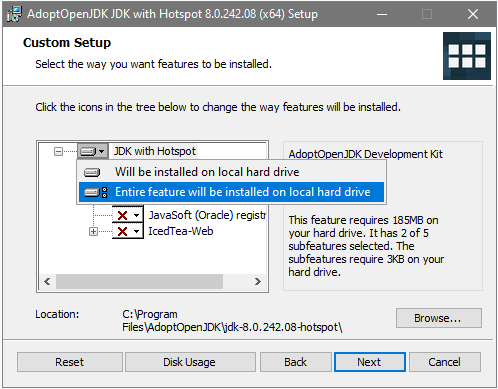
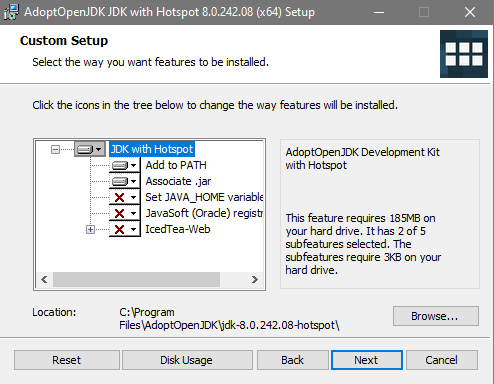
Go to https://adoptopenjdk.net/ and download the latest release of OpenJDK 8, by clicking on the latest release Button. After downloading, run the installer and click next till the Custom Setup screen is shown:
In this screen select Entire feature will be installed on local hard drive, by clicking on the drive icon of JDK with Hotspot
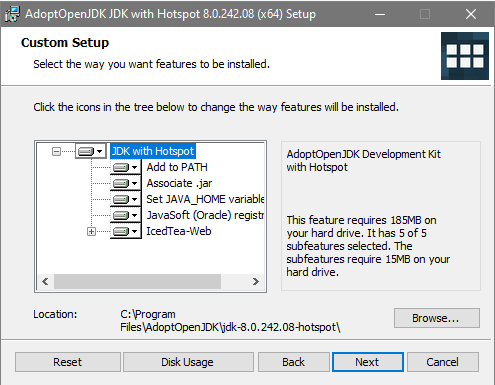
So that the screen looks like:
Click Next and finish the install.
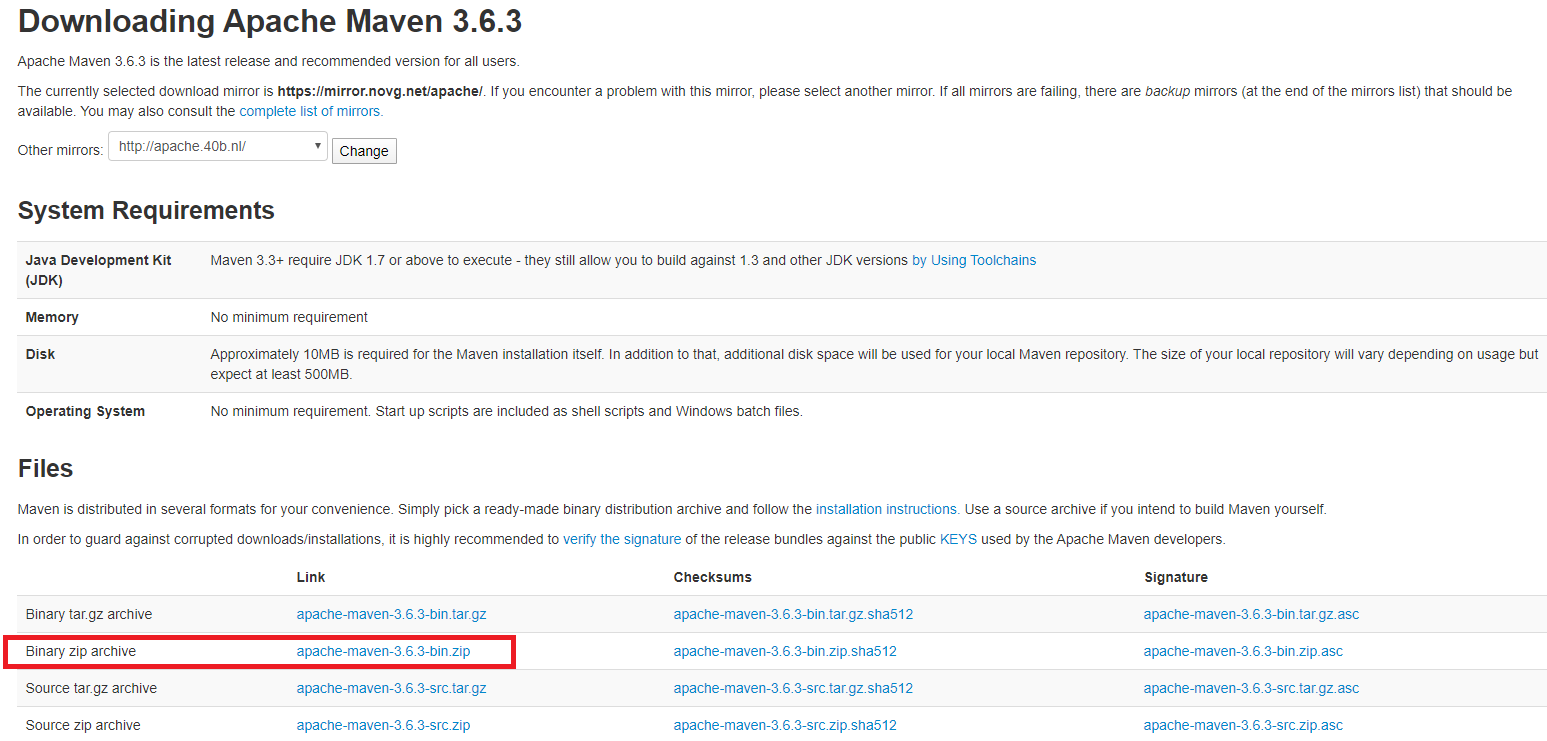
Go to https://maven.apache.org/download.cgi to download Maven (select the Binary zip archive in the Files section).
Ones downloaded extract the distribution archive in any directory. e.g. C:\Program Files\Maven.
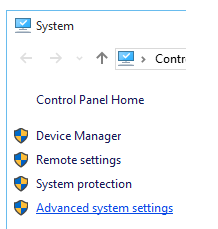
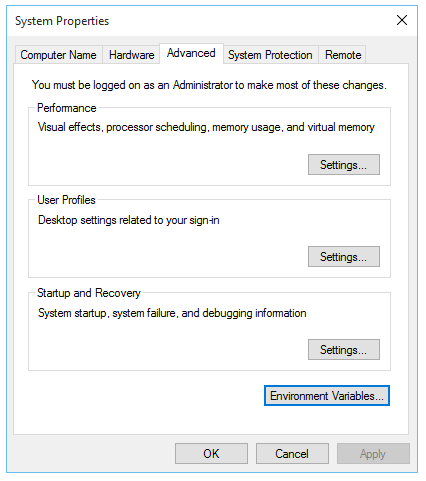
Add the bin directory of the created directory by the extraction process (the name of the created directory depends on the downloaded version of Maven) to your user PATH environment variable. This can be done by opening up the system properties (WinKey + Pause) and by clicking on “Advanced system settings” on the left.
Now in the new window that comes up, select Environment Variables... at the bottom.
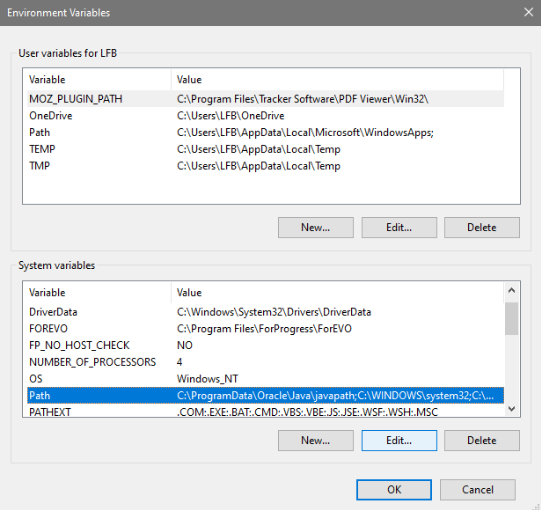
Select the PATH variable in the System Variables section (the lower half), click on “Edit”.
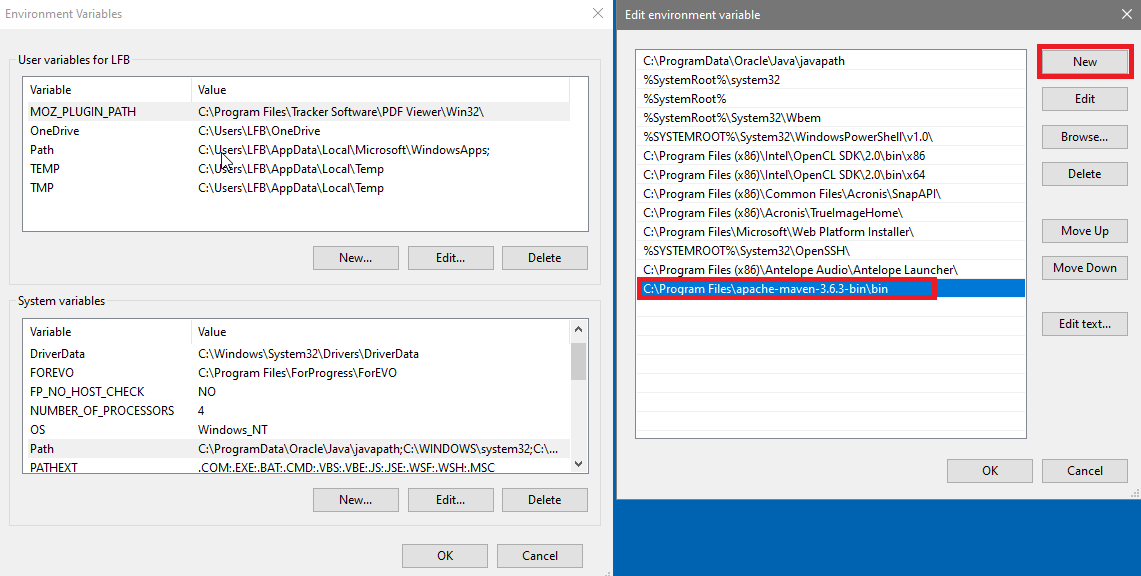
The “Edit environment variable” UI will appear. Here, you can click “New” and type in the path to the Maven bin directory (in this case C:\Program Files\apache-maven-3.6.3\bin).
Dismiss all of the dialogs by choosing “OK”.
To check that everything is properly installed:
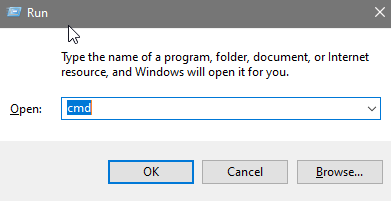
Open a new command prompt (Winkey + R then type cmd, and click OK)
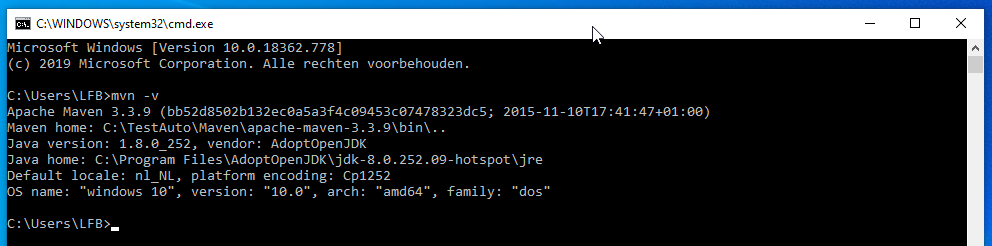
In the terminal Window, type run mvn -v followed by Enter, to verify the installation. The result should look similar to